You are not logged in.
- Topics: Active | Unanswered
Pages: 1
#1 2026-10-05 23:16
- peixe80
- Member
- Registered: 2026-09-25
- Posts: 14
Disable Update Manager for a specific user
Is it possible to configure the Q4OS Update Manager to be activated with one user but not another? Thanks!!
Offline
#2 2026-10-06 07:09
- Taige
- Banned

- Registered: 2025-08-19
- Posts: 105
Re: Disable Update Manager for a specific user
You can do this, you can configure the Update Manager to turn on for a specific user and not another.
On KDE Plasma, startup programs are managed via desktop files stored in the user's local folder:
- 1. Log in to the account of the user for whom you want to disable the Update Manager;
- 2. Open the terminal and create a local directory for startup applications (if it doesn't already exist): mkdir -p ~/.config/autostart
- 3. Copy the Q4OS update manager startup file to the user's folder: cp /etc/xdg/autostart/q4os-updater.desktop ~/.config/autostart/
- 4. Open the file you just copied with a text editor (nano or kate): nano ~/.config/autostart/q4os-updater.desktop
- 5. Add the following line to the end of the file to prevent it from running: X-KDE-autostart-condition=false or Hidden=true
- 6. Save and close the file. The next time you restart or log in, the Update Manager will not start for this user, instead remaining active for others.
On Trinity Desktop Environment (TDE), you can manage services directly from the control center or through the user's Autostart folder:
- 1. Sign in to the account of the user you want to ban;
- 2. Open the Konqueror file manager or terminal and navigate to the folder: ~/.trinity/Autostart/
- 3. If you have the q4os-pkui or q4os-updater link or file, you can remove it from this folder or edit it by adding the string Hidden=true inside the file;
- 4. Alternatively you can check the TDE Control Center under System Administration > Update Manager to see if there are any specific activation options for the current session;
As for system updates, disabling the graphical interface for a user simply removes the icon in the system tray and the related notifications. However, the main user or system administrator can still update the computer normally from the other account or via the terminal by running the command: sudo apt update && sudo apt dist-upgrade
Offline
#3 2026-10-07 00:08
- peixe80
- Member
- Registered: 2026-09-25
- Posts: 14
Re: Disable Update Manager for a specific user
- 2. Open the Konqueror file manager or terminal and navigate to the folder: ~/.trinity/Autostart/
- 3. If you have the q4os-pkui or q4os-updater link or file, you can remove it from this folder or edit it by adding the string Hidden=true inside the file;
I don't have those files:
$ ls ~/.trinity/Autostart/ -la
total 12
drwxr-xr-x 2 user user 4096 sep  9 19:35 .
drwxr-xr-x 5 user user 4096 sep 11 17:25 ..
-rw-r--r-- 1 user user 2110 sep 11 17:25 .directory
$- 4. Alternatively you can check the TDE Control Center under System Administration > Update Manager to see if there are any specific activation options for the current session
I don't see that option either:
https://i.postimg.cc/yYcMSLpd/captura1.png
Thank you for your answer 
Offline
#4 2026-10-07 07:30
- Taige
- Banned
- Registered: 2025-08-19
- Posts: 105
Re: Disable Update Manager for a specific user
Taige wrote:- 2. Open the Konqueror file manager or terminal and navigate to the folder: ~/.trinity/Autostart/
- 3. If you have the q4os-pkui or q4os-updater link or file, you can remove it from this folder or edit it by adding the string Hidden=true inside the file;I don't have those files:
$ ls ~/.trinity/Autostart/ -la
total 12
drwxr-xr-x 2 user user 4096 sep  9 19:35 .
drwxr-xr-x 5 user user 4096 sep 11 17:25 ..
-rw-r--r-- 1 user user 2110 sep 11 17:25 .directory
$
The reason you didn't find any files in ~/.trinity/Autostart/ is that the Q4os Update Manager applet (q4os-pkui) runs as a global system-wide autostart item located in /etc/xdg/autostart/q4os-pkui.desktop. By default, it automatically launches for every user who logs in. It's a global configuration file, so if you edit /etc/xdg/autostart/q4os-pkui.desktop directly and add Hidden=true, it will hide it for everyone.
To disable it for one user account only, you need to copy that global starter into that specific user's personal XDG autostart directory and override it there. Do these steps while logged into the user account where you want to disable the update manager:
- 1. Create the local directory if it doesn't exist yet: mkdir -p ~/.config/autostart
- 2. Copy the Update Manager configuration file into that user's newly created local folder: cp /etc/xdg/autostart/q4os-pkui.desktop ~/.config/autostart/
- 3. Open the copied file using a text editor by using nano or Konqueror (If you are using nano, press Ctrl+O then Enter to save and Ctrl+X to exit): nano ~/.config/autostart/q4os-pkui.desktop
Scroll to the very bottom of the file, add the following line, and save the file: Hidden=trueTaige wrote:- 4. Alternatively you can check the TDE Control Center under System Administration > Update Manager to see if there are any specific activation options for the current session
I don't see that option either:
https://i.postimg.cc/yYcMSLpd/captura1.png
Thank you for your answer
If you don't see that option, it should depend on the fact that the gui doesn't support session-based or per-user toggles, the system-wide application (q4os-pkui) launches unconditionally for everyone. The command-line XDG Autostart override remains the most effective workaround, as it intercepts the background trigger for that specific account without touching the system-wide settings or impacting other users.
Try by using the GUI Method via File Manager Konqueror:
- 1. Log into the account that should not have the Update Manager;
- 2. Open Konqueror and ensure hidden files are visible (Press Ctrl + or check View > Show Hidden Files);
- 3. Go to /etc/xdg/autostart/ and copy the file named q4os-pkui.desktop;
- 4. Go back to your Home directory, open the hidden .config folder, then open autostart (if autostart isn't there, right-click and create a new folder with that exact name;
- 5. Paste the q4os-pkui.desktop file inside ~/.config/autostart/;
- 6. Right-click the newly pasted file, choose Properties, switch to the Application tab and add ; followed by a dummy parameter to the executable string, or open it with a text editor like KWrite and paste Hidden=true at the bottom of the file on its own line;
Let me know if this method works.
Offline
#5 2026-10-07 13:12
- peixe80
- Member
- Registered: 2026-09-25
- Posts: 14
Re: Disable Update Manager for a specific user
There's no file called "q4os-pkui.desktop" in "/etc/xdg/autostart/":
# ls -la /etc/xdg/autostart/
total 40
drwxr-xr-x 2 root root 4096 sep 30 22:27 .
drwxr-xr-x 9 root root 4096 sep  9 18:22 ..
-rw-r--r-- 1 root root  193 nov 20  2025 at-spi-dbus-bus.desktop
-rw-r--r-- 1 root root  227 dic 22  2024 geoclue-demo-agent.desktop
-rw-r--r-- 1 root root 1724 jul 14  2025 kglobalacceld.desktop
-rw-r--r-- 1 root root 8462 mar 13  2025 print-applet.desktop
-rw-r--r-- 1 root root  267 ago  3 22:54 q4os-um-trayicon.desktop
-rw-r--r-- 1 root root  212 dic 20  2024 xdg-user-dirs.desktop
#
Thank you!
Offline
#6 2026-10-07 13:31
- q4osteam
- Q4OS Team

- Registered: 2015-12-06
- Posts: 6,425
- Website
Re: Disable Update Manager for a specific user
Hello @peixe80
Log in as the user who should NOT get the update notifier and run in a terminal:
$ mkdir -p ~/.configtde/autostart
$ printf '[Desktop Entry]\nHidden=true\n' > ~/.configtde/autostart/q4os-um-trayicon.desktop
Log out and back in, and the tray icon will no longer start for that user. Other users are not affected. To undo, delete that file.
Notes:
This only stops the tray notifier. The Update Manager can still be opened from the menu, but installing updates always asks for an administrator password anyway.
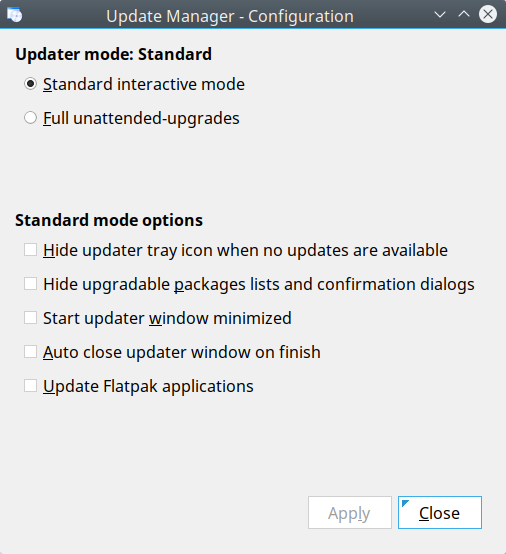
If you'd rather keep the icon but have it appear only when updates are actually available, each user can choose that themselves: in the Update Manager settings, tick "Hide updater tray icon when no updates are available" (this setting is per user).
"Full unattended upgrades" mode is system-wide, so it cannot be set per user.
@Taige seems to lead you in an incorrect way, the misleading posts will be removed in a couple of days.
Offline
#7 2026-10-07 14:30
- Midas
- Member

- Registered: 2017-12-15
- Posts: 275
Re: Disable Update Manager for a specific user
@Taige seems to lead you in an incorrect way, the misleading posts will be removed in a couple of days.
FWIW and considering the number and nature of his/her answers, I can't escape a lingering suspicion that we may be dealing with an AI bot... 
Last edited by Midas (2026-10-07 14:30)
Offline
#8 2026-10-07 14:46
- peixe80
- Member
- Registered: 2026-09-25
- Posts: 14
Re: Disable Update Manager for a specific user
$ printf '[Desktop Entry]\nHidden=true\n' > ~/.configtde/autostart/q4os-um-trayicon.desktop
This works for me. Thanks so much!
Offline
#9 2026-10-07 15:02
- q4osteam
- Q4OS Team
- Registered: 2015-12-06
- Posts: 6,425
- Website
Re: Disable Update Manager for a specific user
@peixe80
Thanks for letting us know
@Midas
Likely he is not, however we will keep an eye on it
Offline
Pages: 1
- Registered users online in this topic: 0, guests: 1