You are not logged in.
- Topics: Active | Unanswered
Pages: 1
#1 2026-01-25 18:35
- cwh
- Member
- Registered: 2024-10-16
- Posts: 52
Epson ET2720 not printing
hi there,
i am on Q4os 6.5 as VBox-guest on Win11 host.
Recently i installed
1. epson-inkjet-printer-escpr_1.8.6-1_amd64.deb
2.epson-printer-utility_1.2.2-1_amd64.deb
3.epsonscan2-bundle-6.7.82.0.x86_64.deb.tar.gz
to get access to my printer (Epson ET 2720).
The printer is connected at usb.
I lauched the printer setup from the Q4os system menue and set up the printer.
Oh man... easy going... i thought... but when printing the testpage nothing happened.
The testpage stuck in the spooler saying "printing" but nothing arrived at my physical printer.
What can i do to get my physical printer working?
Thanks for helping me!

Offline
#2 2026-02-02 12:34
- q4osteam
- Q4OS Team

- Registered: 2015-12-06
- Posts: 6,429
- Website
Re: Epson ET2720 not printing
As it's hardware related, we are not able to perform valuable testing.
- Did you install Virtualbox extensions in order to make USB data transfer working in VBox guests ?
- Do other hardware, for ex. USB flash memory, work in the VBox guest ?
- Could you test another, more common printer, for ex. HP ?
Offline
#3 2026-02-03 17:52
- bin
- Member

- From: U.K.
- Registered: 2016-01-28
- Posts: 1,608
Re: Epson ET2720 not printing
I have an ET-2860 which uses the same driver as the 2720 so cannot be too far from it in spec.
BTW the EPSON driver for this machine is available https://download-center.epson.com/softw … anguage=en
I have tried setting up printing in Virtualbox 7.2.0 with the same version Guest Additions installed.
Created pass through filter, it shows as active in the VM settings but when the Guest is booted it just doesn't want to show in the USB Devices - though USB keys do.
At this point I'm a little stumped I must admit.
Offline
#4 2026-02-03 23:09
- cwh
- Member
- Registered: 2024-10-16
- Posts: 52
Re: Epson ET2720 not printing
Thanks for your answers. Guest edition is same version
My usb-mouse is working and my shared folder too. but connecting a usb drive 4ex only windows shows response...
Offline
#5 2026-02-03 23:13
- cwh
- Member
- Registered: 2024-10-16
- Posts: 52
Re: Epson ET2720 not printing
Im not shure whether Q4OS updated his own extpack when i updated VB ...
Offline
#6 2026-02-04 09:39
- q4osteam
- Q4OS Team
- Registered: 2015-12-06
- Posts: 6,429
- Website
Re: Epson ET2720 not printing
... but connecting a usb drive 4ex only windows shows response...
So this points to a problem with how Virtualbox handles USB. Q4OS does have no own Virtualbox host extension pack, you need to update it alongside with Virtualbox from the Oracle's sources, the same way as Virtualbox itself.
Offline
#7 2026-02-04 22:09
- cwh
- Member
- Registered: 2024-10-16
- Posts: 52
Re: Epson ET2720 not printing
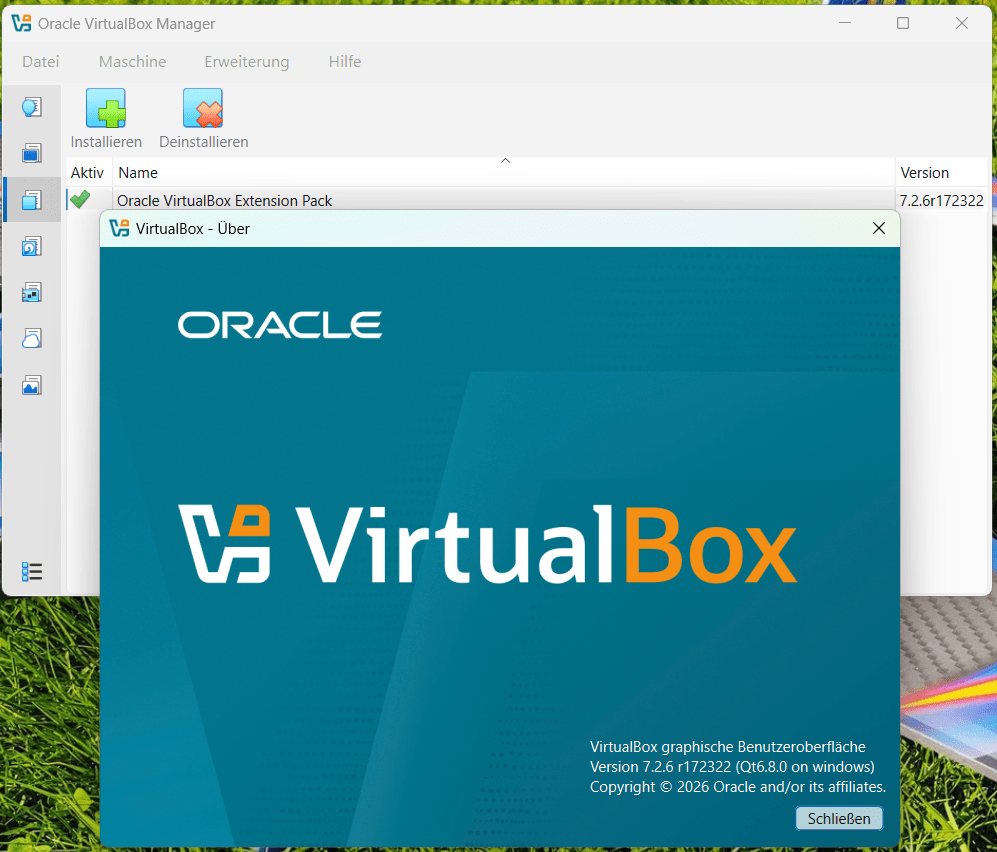
ok... i made an Attatchment to post #4. Is something wrong with this?
Last edited by cwh (2026-02-04 22:15)
Offline
#8 2026-02-04 22:35
- q4osteam
- Q4OS Team
- Registered: 2015-12-06
- Posts: 6,429
- Website
Re: Epson ET2720 not printing
That looks fine, the same version.
Im not shure whether Q4OS updated his own extpack when i updated VB ...
You should install guest additions via main menu > devices > insert guest additions cd
Last edited by q4osteam (2026-02-04 22:38)
Offline
#9 2026-02-05 12:39
- cwh
- Member
- Registered: 2024-10-16
- Posts: 52
Re: Epson ET2720 not printing
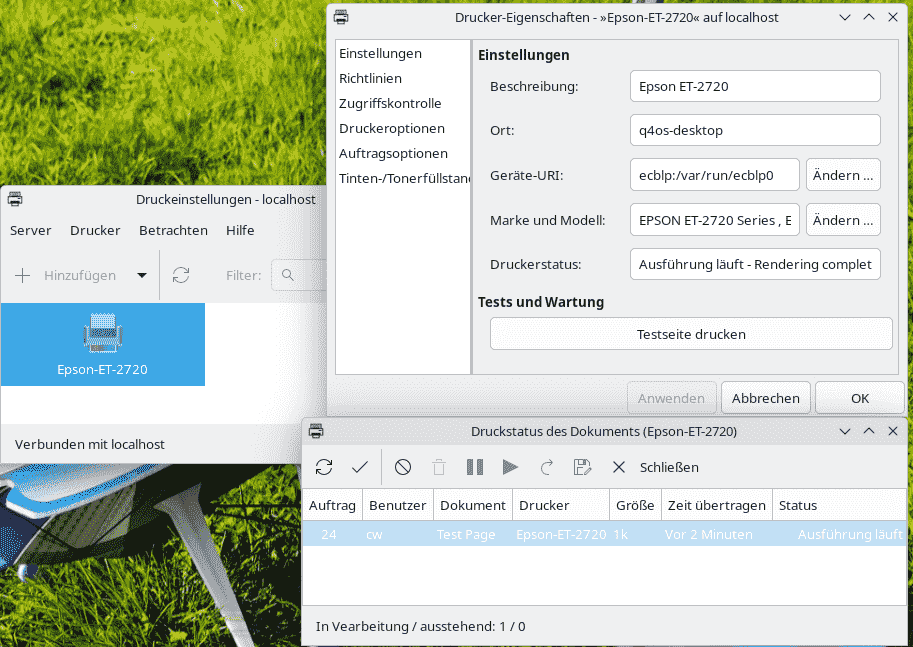
i deleted the installed ext. and installed it again. Same result...
Last edited by cwh (2026-02-05 12:40)
Offline
#10 2026-02-05 13:43
- q4osteam
- Q4OS Team
- Registered: 2015-12-06
- Posts: 6,429
- Website
Re: Epson ET2720 not printing
There are several common issues that can arise when connecting a physical USB device to a virtual machine in VirtualBox:
- Host Interference: If the USB device is already in use by the host or another application, it might not pass through correctly.
- Permission Issues: On some systems, you may need to adjust user permissions to allow the guest to access USB devices.
- USB Versions: Sometimes, using the wrong USB version, like USB 3.0 vs 2.0, can cause connectivity problems.
Offline
#11 2026-02-05 17:44
- bin
- Member
- From: U.K.
- Registered: 2016-01-28
- Posts: 1,608
Re: Epson ET2720 not printing
OK I've been around the block with this one today and from a Linux point of view the answer is a bit silly - but it is what it is,
I have been using a pretty old version of virtualbox for a while now and never had any issues with usb devices.
For all sorts of reasons I have been reinstalling a number of my machines.
I don't know how far back down the version list this goes, but certainly the 7.2.0 debian virtualbox installer misses out a step on the host.
So - full story for a happy life with virtualbox.
1. Install virtualbox on host - I used the 7.2.4 from https://www.virtualbox.org/wiki/Download_Old_Builds_7_2.
NOTE you will need the Extension Pack and Guest Additions as well.
2. Reboot
3. ADD YOUR USER TO THE VBOXUSERS GROUP - the installer creates the group but doesn't add the user to it! sudo usermod -a -G vboxusers <your_user_name> Without this the USB stuff just ain't gonna work.
4. Start Virtualbox. Go to File>Tools>Extensions and install the Extension Pack you downloaded earlier.
5. Set up your VM
5.1 - IF you get "VirtualBox can't operate in VMX root mode.
Please disable the KVM kernel extension, recompile your kernel and reboot.
(VERR_VMX_IN_VMX_ROOT_MODE)."
you need to create a blacklist file in /etc/modeprobe.d/kvm-blacklist.conf - do this using sudo and your fav editor.
the content is blacklist kvm_intel - I've attached one to make it easy.
6. Once your VM is installed you need to add the Guest Additions.
You may have bits of old Guest additions if the original iso had them. Just do sudo apt search virtualbox-guest-* | grep installed.
If it gives results do sudo apt remove virtualbox-guest-*
7. Reboot the Guest VM
8. On the VM terminal do uname -r to get the kernel version.
Then sudo apt install gcc perl make linux-headers-<result of uname -r>
9. Now you can install the Guest Additions - provided you have attached the iso to the machine in the Optical Drive section - go to Devices>Insert Guest Additions CD.
10. Copy VBoxLinuxAdditions.run to e.g. the Downloads folder on the Guest. - open terminal in that folder. Just do ls to ensure you are in the right place - file should be listed. Then do sudo ./VBoxLinuxAdditions.run
Wait - and all should be well.
11. In terminal do sudo usermod -a -G vboxsf <your-user-name>
Reboot the VM.
If it is all correct then going to Devices>USB should list all the USB type stuff including the printer - if it is on.
In respect of the OP query. Provided the downloaded 1.86 driver has been installed in the VM, it should be picked up by the Add Printer process - worked fine with mine.
I do not how to translate the above to WIndows, but hopefully you now have enough clues as to what is needed. The rest of the blurb is for anyone who is interested.
Offline
#12 2026-02-06 02:34
- cwh
- Member
- Registered: 2024-10-16
- Posts: 52
Re: Epson ET2720 not printing
Thanks for writing this down!
NOTE you will need the Extension Pack and Guest Additions as well.
is there a difference?
And... if yes... where can i download the guest edition iso for VB 7.2.6 ?
I am on Win11 host and Q4OS guest...
Offline
#13 2026-02-06 08:05
- bin
- Member
- From: U.K.
- Registered: 2016-01-28
- Posts: 1,608
Re: Epson ET2720 not printing
Yes there is a difference. The extension pack is applied to the VB installation as a whole. The guest additions are applied per machine.
https://download.virtualbox.org/virtualbox/7.2.6/
The Guest Additions iso is for all operating systems.
Make sure the Extension pack matches your VB version exactly
Offline
#14 2026-02-06 09:44
- q4osteam
- Q4OS Team
- Registered: 2015-12-06
- Posts: 6,429
- Website
Re: Epson ET2720 not printing
@cwh
You need the following VirtualBox components, and all of them must be the same version:
1. Host setup
- VirtualBox host
- VirtualBox Host Extension Pack
2. Guest setup
- VirtualBox Guest Additions
Installing VirtualBox Guest Additions:
- Start the virtual machine.
- In the VM window, open the host menu and go to Devices.
- Select Insert Guest Additions CD Image.
- Open the inserted CD inside the guest OS.
- Run the Guest Additions installer from within the guest.
Offline
#15 2026-02-07 01:45
- cwh
- Member
- Registered: 2024-10-16
- Posts: 52
Re: Epson ET2720 not printing
Thank you vm for the Link! I did not found it...
Will follow these steps tomorrow...
Im excited what happens....
Offline
#16 2026-02-07 01:50
- cwh
- Member
- Registered: 2024-10-16
- Posts: 52
Re: Epson ET2720 not printing
I suspect meening exact this while writing post #5 ...
Offline
#17 2026-02-07 08:26
- bin
- Member
- From: U.K.
- Registered: 2016-01-28
- Posts: 1,608
Re: Epson ET2720 not printing
Thank you vm for the Link! I did not found it...
Will follow these steps tomorrow...
Im excited what happens....
The Extension packs are at the top of the list
The Guest Additions are the only .iso a few items below

Offline
#18 2026-02-07 17:42
- cwh
- Member
- Registered: 2024-10-16
- Posts: 52
Re: Epson ET2720 not printing
thanks. And ... which Ext.Pack do i need?
Or doesnt it matter...
Offline
#19 2026-02-08 08:49
- bin
- Member
- From: U.K.
- Registered: 2016-01-28
- Posts: 1,608
Re: Epson ET2720 not printing
Just make sure the extension pack and Virtual Box software versions match.
Offline
#20 2026-02-13 11:43
- cwh
- Member
- Registered: 2024-10-16
- Posts: 52
Re: Epson ET2720 not printing
Thank you.
Somehow it seems to work...
I got my Testpage out of my physical printer these days...
But i cant reproduce it...
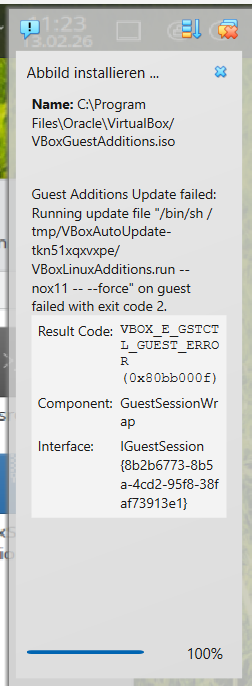
I would like to update the installed Linux guest Addition to make it permanent but i failed doing this...
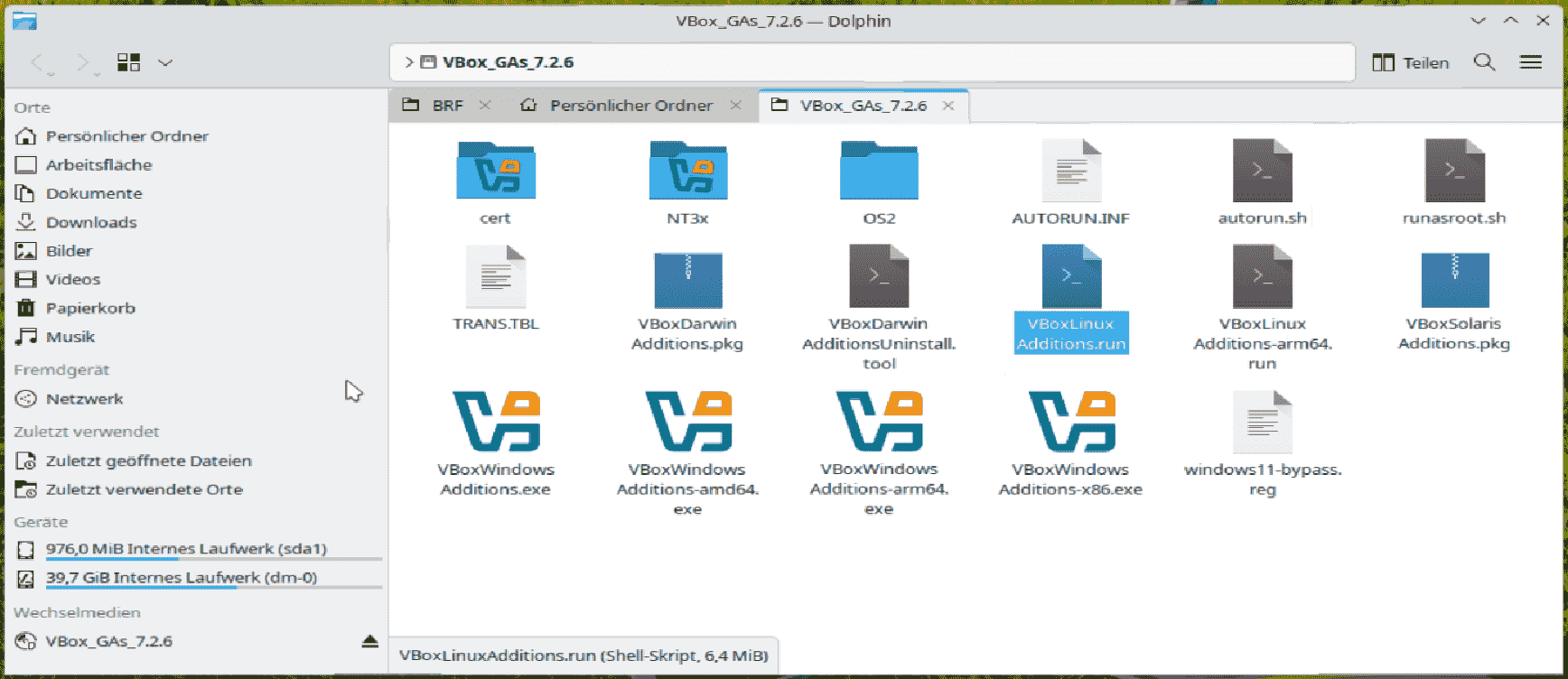
Last edited by cwh (2026-02-13 11:46)
Offline
#21 2026-02-13 15:20
- bin
- Member
- From: U.K.
- Registered: 2016-01-28
- Posts: 1,608
Re: Epson ET2720 not printing
Copy VBoxLinuxAddtions.run to your Downloads folder on the VM. You can then eject the iso image.
Open Konsole (Terminal)
enter
sudo apt remove virtualbox-guest-*When that is finished reboot the VM
Once that is back up open the Downloads folder, right click on a blank area and Open Terminal here.
enter
sudo apt install gcc perl makeThen
sudo ./VBoxLinuxAdditions.runThat should complete without errors.
Reboot the VM and all should be well.
Offline
#22 2026-02-13 19:22
- cwh
- Member
- Registered: 2024-10-16
- Posts: 52
Re: Epson ET2720 not printing
thank you vm for this detailed infos! Im not good in CLI.
Now i have access to ext. usb devices.
I noticed that i have to check this devices in the basic VBox user interface of the running VM.
Thank you for helping me!
Offline
#23 2026-02-14 00:53
- cwh
- Member
- Registered: 2024-10-16
- Posts: 52
Re: Epson ET2720 not printing
"I noticed that i have to check this devices in the basic VBox user interface of the running VM."
Can i make this permanent?
Offline
#24 2026-02-14 08:33
- bin
- Member
- From: U.K.
- Registered: 2016-01-28
- Posts: 1,608
Re: Epson ET2720 not printing
The way to do this is to create a USB Filter in the VM settings.
1. Shut down the virtual machine completely.
2. Connect the USB printer to your host machine and ensure it is powered on.
3. Open Settings for your Virtual Machine and go to USB.
4. Click the blue plus (+) icon on the right side to add a new filter.
5. Select your printer from the list of USB devices.
6. Edit the Filter - Click the added filter and select "Edit" (or click the plus again to configure). To ensure it works permanently, delete all values except for the Vendor ID and Product ID. This prevents the filter from failing if the printer moves to a different port.
7. Click OK to save settings.
8. Start the VM. The printer should now be captured automatically.
Offline
#25 2026-02-14 13:29
- cwh
- Member
- Registered: 2024-10-16
- Posts: 52
Re: Epson ET2720 not printing
Yes! Its checked permanently!
I had to try it several times... because of boot-errors....but now its working.
Thanks for that!

Last edited by cwh (2026-02-14 13:29)
Offline
Pages: 1
- Registered users online in this topic: 0, guests: 1