You are not logged in.
- Topics: Active | Unanswered
#1 2025-08-17 13:07
- seb3773
- Member

- From: France
- Registered: 2023-11-01
- Posts: 286
qsidebar: A Customizable Notifications and Quick Actions Center
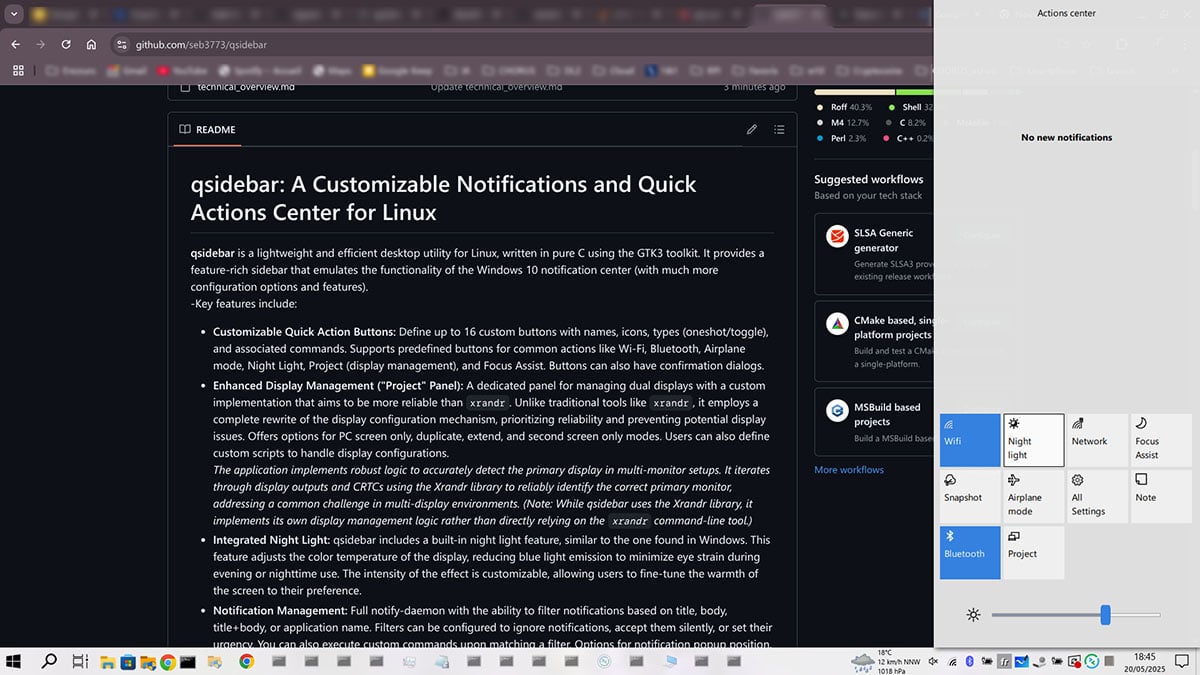
qsidebar is a lightweight and efficient desktop utility for Linux, written in pure C using the GTK3 toolkit. It provides a feature-rich sidebar that emulates the functionality of the Windows 10 notification center (with much more configuration options and features).
-Key features include:
Customizable Quick Action Buttons: Define up to 16 custom buttons with names, icons, types (oneshot/toggle), and associated commands. Supports predefined buttons for common actions like Wi-Fi, Bluetooth, Airplane mode, Night Light, Project (display management), and Focus Assist. Buttons can also have confirmation dialogs.
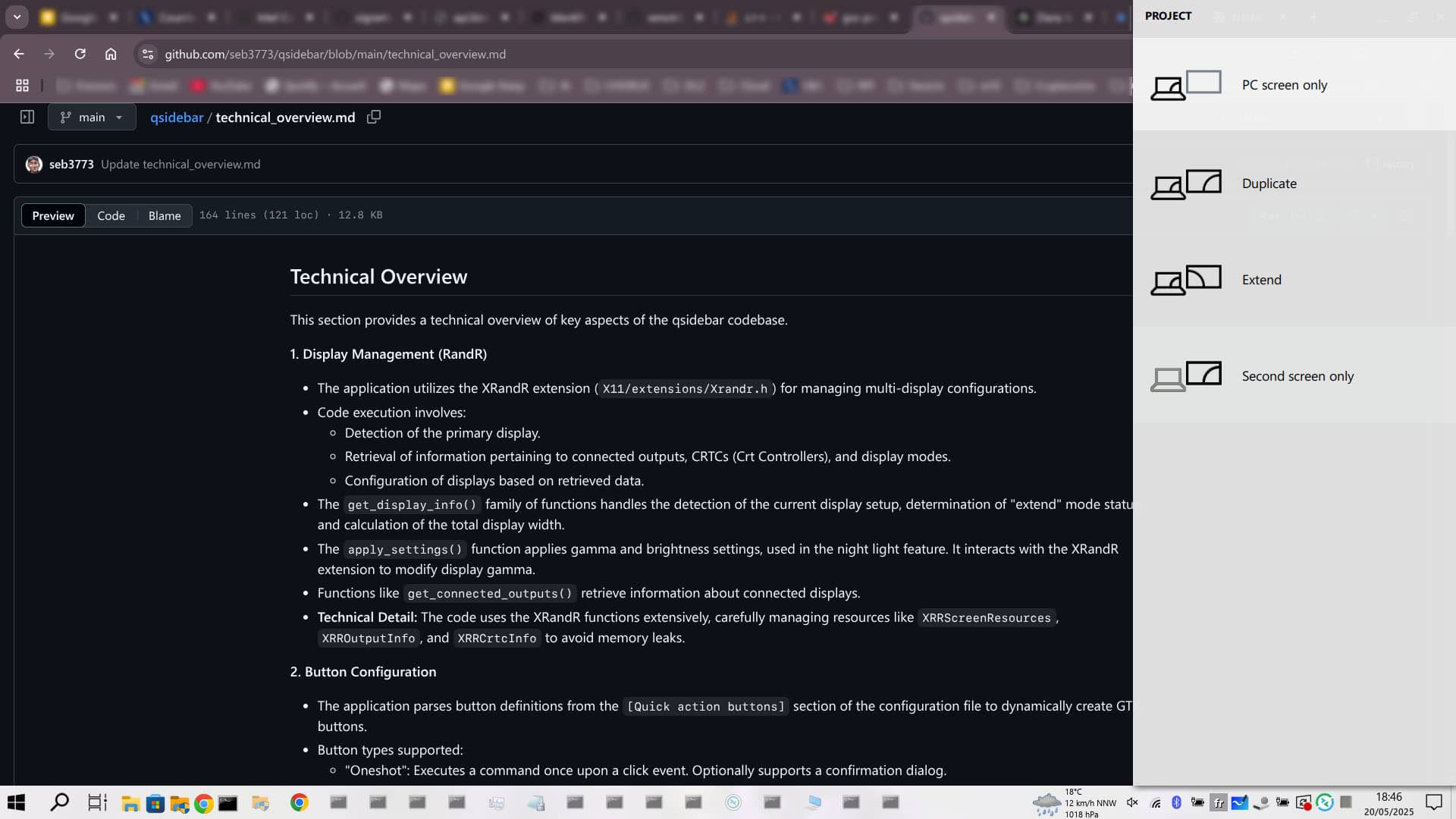
Enhanced Display Management ("Project" Panel): A dedicated panel for managing dual displays with a custom implementation that aims to be more reliable than xrandr. Unlike traditional tools like xrandr, it employs a complete rewrite of the display configuration mechanism, prioritizing reliability and preventing potential display issues. Offers options for PC screen only, duplicate, extend, and second screen only modes. Users can also define custom scripts to handle display configurations.
The application implements robust logic to accurately detect the primary display in multi-monitor setups. It iterates through display outputs and CRTCs using the Xrandr library to reliably identify the correct primary monitor, addressing a common challenge in multi-display environments. (Note: While qsidebar uses the Xrandr library, it implements its own display management logic rather than directly relying on the xrandr command-line tool.)
Integrated Night Light: qsidebar includes a built-in night light feature, similar to the one found in Windows. This feature adjusts the color temperature of the display, reducing blue light emission to minimize eye strain during evening or nighttime use. The intensity of the effect is customizable, allowing users to fine-tune the warmth of the screen to their preference.
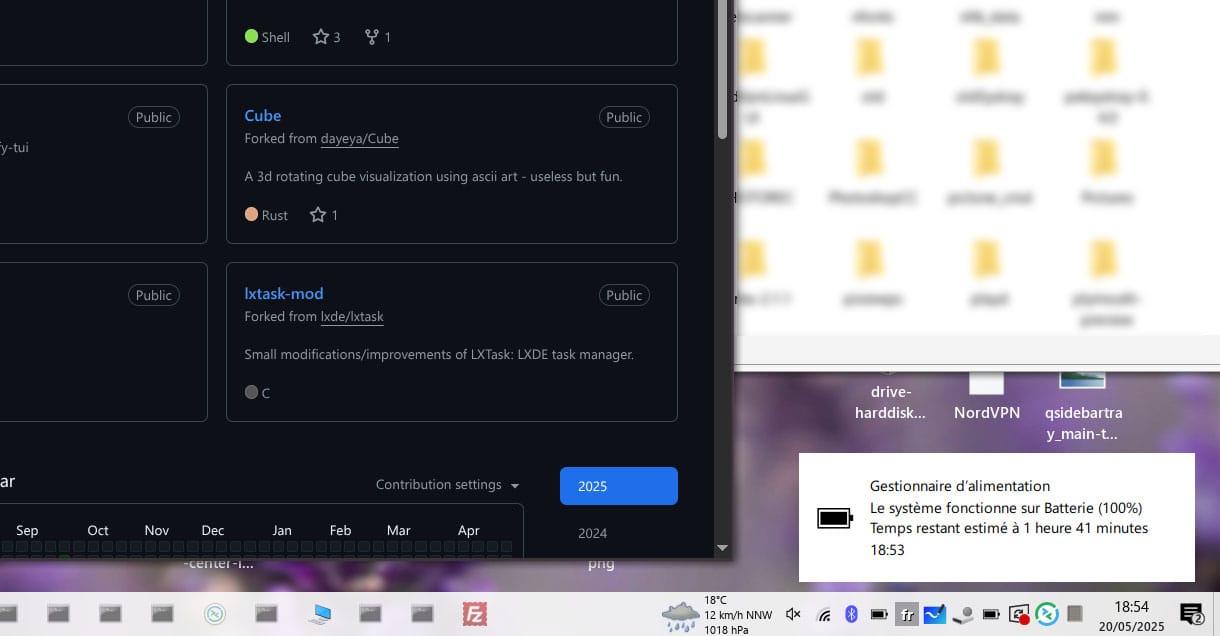
Notification Management: Full notify-daemon with the ability to filter notifications based on title, body, title+body, or application name. Filters can be configured to ignore notifications, accept them silently, or set their urgency. You can also execute custom commands upon matching a filter. Options for notification popup position, colors, opacity, and timeouts are available. You can also hide notification icons and control the tray icon's notification number indicator.
Backlight Control: qsidebar includes functionality to control the screen backlight, which is relevant for laptops. It interacts with the system to get and set the brightness level.
Flexible Integration: qsidebar can be used as a standalone application with its own system tray icon. Alternatively, it offers full integration with Trinity Desktop environment through a dedicated Kicker applet, providing seamless control of the sidebar.
Optimized Performance: The program is designed for efficiency, featuring optimized code that results in a small binary size ( < 100KB ) and minimal memory footprint, allowing it to run smoothly even on low-end systems.
Extensive Customization: Highly customizable appearance with options for:
Panel tint (default, dark, TDE, or custom RGB).
Panel opacity.
Background image (with an option for a solid background behind the image).
Panel opening/closing animations (slide, fade, slide+fade, none) with optional easing.
Custom panel title.
Dark mode with night light intensity adjustment.
Rounded quick action buttons.
Transparent click-through behavior with configurable modes (ALL, DESKTOP) and window types.
Bottom margin for the panel.
Notification sound (predefined or custom).
Customizable fonts for various elements (panel title, text, quick actions, project, notifications).
Originally, it was designed exclusively for the Trinity Desktop environment (I'm a proud user of Q4OS, that's why the name is qsidebar, q stands for q4os ^^ ), and the initial development used TQt3. However, my limited experience with Qt development  and the broader compatibility of GTK3 (allowing it to run on other desktop environments) led to the decision to rewrite the code with GTK3, utilizing a dedicated Kicker applet for improved Trinity integration. The outcome is, in my opinion, a successful compromise, providing seamless Trinity integration while also supporting standalone usage for other DE.
The qsidebar application is configured through a text file located at /home/<user>/.qsidebar/qsidebar.conf. A minimal configuration file is automatically created in this location at first launch if it doesn't already exist, you can edit it to adapt to your needs.
To apply changes, you usually need to restart qsidebar or send it a SIGHUP signal.(pkill -HUP qsidebar)
More information and full documentation here: https://github.com/seb3773/qsidebar
Packages in this post:
qsidebar_trinity.deb ---> if you want the trinity kicker applet (prefered version for trinity users)
qsidebar.deb ---> generic, using his own systray (no trinity kicker integration)
++important: you need of course to kill/remove any other notification daemon like Dunst, Mako, or Xfce4-notifyd etc... If another daemon is already running and has claimed ownership of the notification bus, qsidebar will display the error message "Not primary owner of org.freedesktop.Notifications or already running" and exit.
qsidebar_trinity.deb
qsidebar.deb
Last edited by seb3773 (2025-08-17 13:55)
Debian & Q4OS (TDE!!), low-level C, ASM (z80/68k/x86/ARM64), embedded systems, CPU architectures (RISC-V, binary formats, assembly), retro-computing, metal music, guitar and sci-fi.
Offline
#2 2025-08-17 13:21
- theasmitkid
- Member
- From: NCT of Delhi
- Registered: 2025-01-26
- Posts: 357
Re: qsidebar: A Customizable Notifications and Quick Actions Center
Look's great!
Coding & Robotics Enthusiast | Windows 7 x86 @ n2600 · 2GB · 320GB HDD (No graphics acceleration available in linux)
Offline
#3 2025-08-17 13:26
- seb3773
- Member
- From: France
- Registered: 2023-11-01
- Posts: 286
Re: qsidebar: A Customizable Notifications and Quick Actions Center
Look's great!
Thanks, don't hesitate to try it, and report any bugs/problems. I'm using it on a daily basis, and it's been working fine for me so far 
Debian & Q4OS (TDE!!), low-level C, ASM (z80/68k/x86/ARM64), embedded systems, CPU architectures (RISC-V, binary formats, assembly), retro-computing, metal music, guitar and sci-fi.
Offline
#4 2025-08-17 14:56
- q4osteam
- Q4OS Team

- Registered: 2015-12-06
- Posts: 6,441
- Website
Re: qsidebar: A Customizable Notifications and Quick Actions Center
@seb3773
+1
Offline
- Registered users online in this topic: 0, guests: 1